

npm run dev -- --host $HOST --port 3000 &). This preview URL can be either public (does not require you to be authenticated to access it) or private (see below).
They will look something like this:
If you see a 502 error when accessing the preview URL, the most common cause is that your application server is not reachable externally. To resolve this, configure your server to bind to the address provided by the Read more about this in our troubleshooting page.
HOST environment variable, which Blaxel injects into the sandbox, rather than a static value. If you need a static fallback (for example when running the same code outside a sandbox), use :: so it listens on all available network interfaces over both IPv4 and IPv6 (use 0.0.0.0 only if you specifically need to restrict the server to IPv4). Note that not every server or dev tool accepts a bare :: as a host value — confirm your specific tool supports IPv6 wildcard binding before relying on it. Sample server startup commands are shown below:Current limitations of real-time previews
JavaScript module bundlers handle real-time previewing. Here are the key compatibility requirements and limitations:- Module bundler must implement ping-pong.
- Both Webpack and Turbopack (v16.1.1) have been tested and confirmed to work.
- Blaxel has a 15-minute connection timeout. To maintain previews beyond this limit, ensure your bundler implements automatic reconnection.
- You cannot create a preview on port 80 which is reserved for the system.
Private preview URLs
When you create a private preview URL a token is required to access the URL. You must include the token as:- a
bl_preview_tokenquery parameter when accessing the preview URL (e.g. https://tkmu0oj2bf6iuoag6mmlt8.preview.bl.run/health?bl_preview_token={token.value}) - a
X-Blaxel-Preview-Tokenheader
Manage preview URLs
To whitelist sandbox traffic in your network, you can retrieve the public IP addresses used by Blaxel.
Blaxel console
You can create a preview URL for a sandbox from the Blaxel Console, on the overview of a sandbox: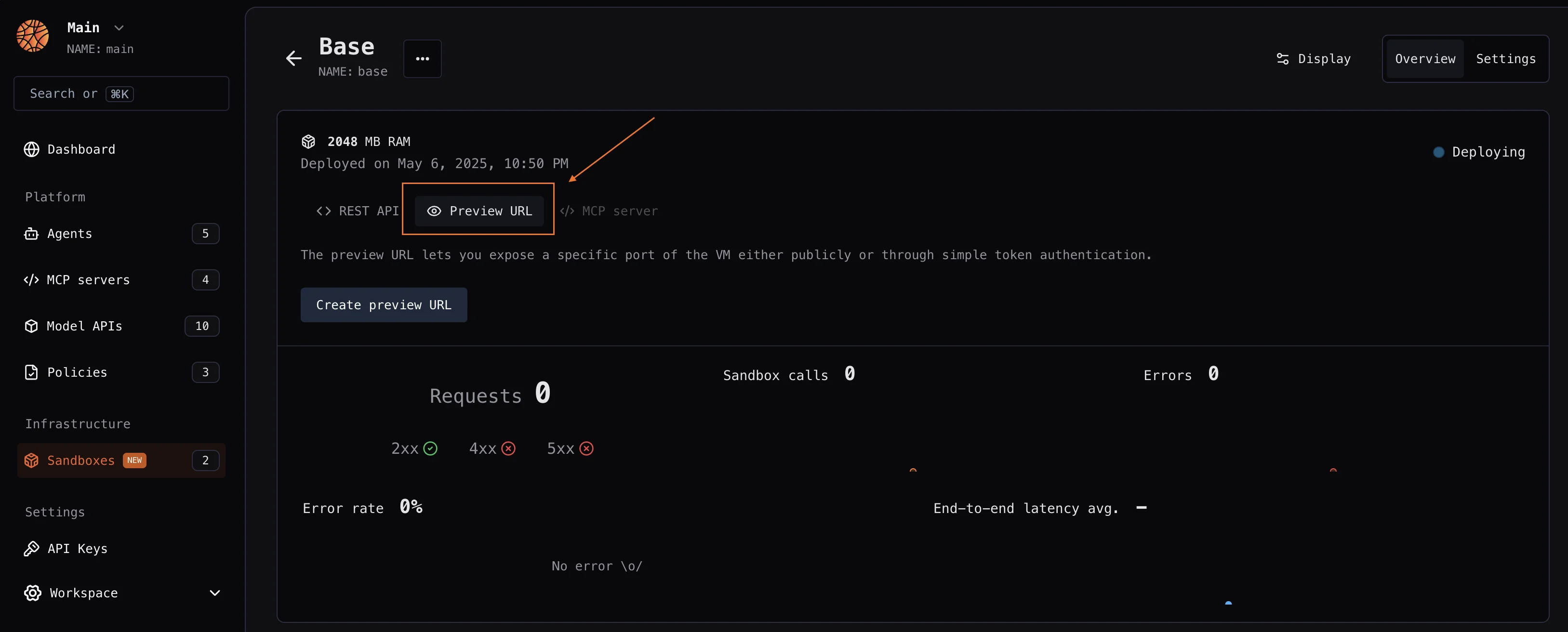
Blaxel SDK
Learn more about authentication on Blaxel
Learn more about authentication on Blaxel
The Blaxel SDK requires two environment variables to authenticate:The Blaxel SDK does not accept credentials as constructor arguments. Credentials must come from environment variables, a
You can create an API key from the Blaxel console. Your workspace name is visible in the URL when you log in to the console (e.g.
app.blaxel.ai/{workspace}).Set them as environment variables or add them to a .env file at the root of your project:.env file, or a local CLI login session (see below).When developing locally, you can also log in to your workspace with Blaxel CLI (as shown above). This allows you to run Blaxel SDK functions that will automatically connect to your workspace without additional setup. When you deploy on Blaxel, authentication is handled automatically — no environment variables needed.createIfNotExists() / create_if_not_exists(). Blaxel first checks for an existing preview with the provided name and either returns it or creates a new one using your specified configuration.
Create and manage a sandbox’s public preview URL:
create(), which raises an error when a preview with the specified name already exists:
URL prefix
You can customize the preview URL with a custom string prefix using theprefixUrl argument:
https://myprefix-workspace-xxx.preview.bl.run.
Custom domains
To set up a custom domain for your sandbox preview:- Register a custom domain to your Blaxel workspace and complete the verification process
- Use this verified custom domain when creating a new preview:
When you register a custom domain, you also enable the use of wildcard subdomains for that domain. For example, if you register
mycompany.com, you can configure preview URLs to use any *.mycompany.com subdomain.Fallback preview
You can also designate one preview as the fallback or catch-all for a custom domain. Any request to a subdomain that does not match an existing preview is routed to this fallback preview instead of returning a 404. Common use cases for this include:- Serving a branded “page not found” or landing page instead of a raw 404
- Routing all traffic to a primary preview by default
- Letting your application handle unknown subdomains with custom logic
- A verified custom domain in your workspace
- At least one active preview on that custom domain
- Go to Workspace Settings > Custom Domains
- Click the … menu on the domain you want to configure
- Select Set Fallback Preview
- Enter the name of the preview to use as the catch-all
- Click Save
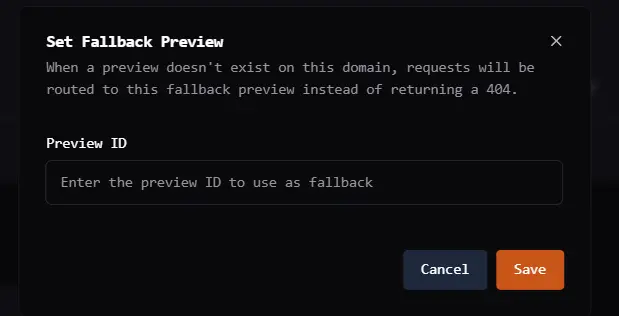
fallbackPreviewId field on the custom domain resource:
- Blaxel checks for a preview matching that subdomain.
- If no match is found and a fallback is configured, the request is routed to the fallback preview.
- If no fallback is configured, the request returns a 404.
The fallback only applies to requests on your custom domain. Standard Blaxel preview URLs (
*.preview.bl.run) are not affected.
Use
X-Blaxel-Fallback-Preview to display a contextual message such as “Preview [name] was not found” on your fallback page.
Security considerations:
- The fallback preview must belong to the same workspace as the custom domain; cross-workspace fallbacks are not allowed.
- Client-injected
X-Blaxel-Fallback-*headers are stripped before routing, so only Blaxel-set values are forwarded. - If the fallback lookup fails for any reason, the request falls through to normal routing without blocking traffic.
demo-previews.store with two previews:
With
landing-page set as the fallback, requests are routed as follows:
my-app.demo-previews.storeroutes to themy-apppreview (direct match)landing-page.demo-previews.storeroutes to thelanding-pagepreview (direct match)unknown.demo-previews.storeroutes to thelanding-pagepreview (fallback)
landing-page application receives X-Blaxel-Fallback: true and X-Blaxel-Fallback-Preview: unknown, allowing it to show a contextual error page.
Delete a preview
When a sandbox is deleted, whether manually or automatically due to a TTL or expiration policy, all of its associated preview URLs are automatically cleaned up as part of that deletion. If you need to remove a preview URL before a sandbox is deleted, you can do so explicitly using the SDKs.FAQ
What is a fallback preview for a custom domain? A fallback preview is a designated preview that receives requests for unrecognized subdomains on your custom domain, instead of returning a 404 error. When does Blaxel route traffic to the fallback preview? Blaxel routes to the fallback when a request arrives for a subdomain that does not match any existing preview on that custom domain. If no fallback is configured, the request returns a 404. How do I configure a fallback preview from the console? In the Blaxel Console, go to Workspace Settings > Custom Domains, click the … menu on the domain, select Set Fallback Preview, enter the preview name, and click Save. What headers does my application receive on a fallback request? Blaxel addsX-Blaxel-Fallback: true, X-Blaxel-Fallback-Preview (the subdomain that was requested), and X-Blaxel-Fallback-Domain (the base custom domain) to all fallback requests.
How do I remove a fallback preview?
From the console, open the Configure Fallback dialog and clear the preview name. From the API, send a PUT request with fallbackPreviewId set to an empty string.
Custom domains
Register and verify a custom domain for your Blaxel workspace.
Sandbox expiration policies
Configure TTL and auto-deletion rules for sandboxes.